> ## Documentation Index
> Fetch the complete documentation index at: https://guide.blux.ai/llms.txt
> Use this file to discover all available pages before exploring further.
# 커스텀 세그먼트
> CSV 파일을 업로드해 메시지를 보내고 싶은 유저를 지정하세요
커스텀 세그먼트는 오디언스로 만들고 싶은 유저의 ID 또는 전화번호를 직접 CSV 파일로 업로드하여 오디언스로 등록하는 기능입니다.
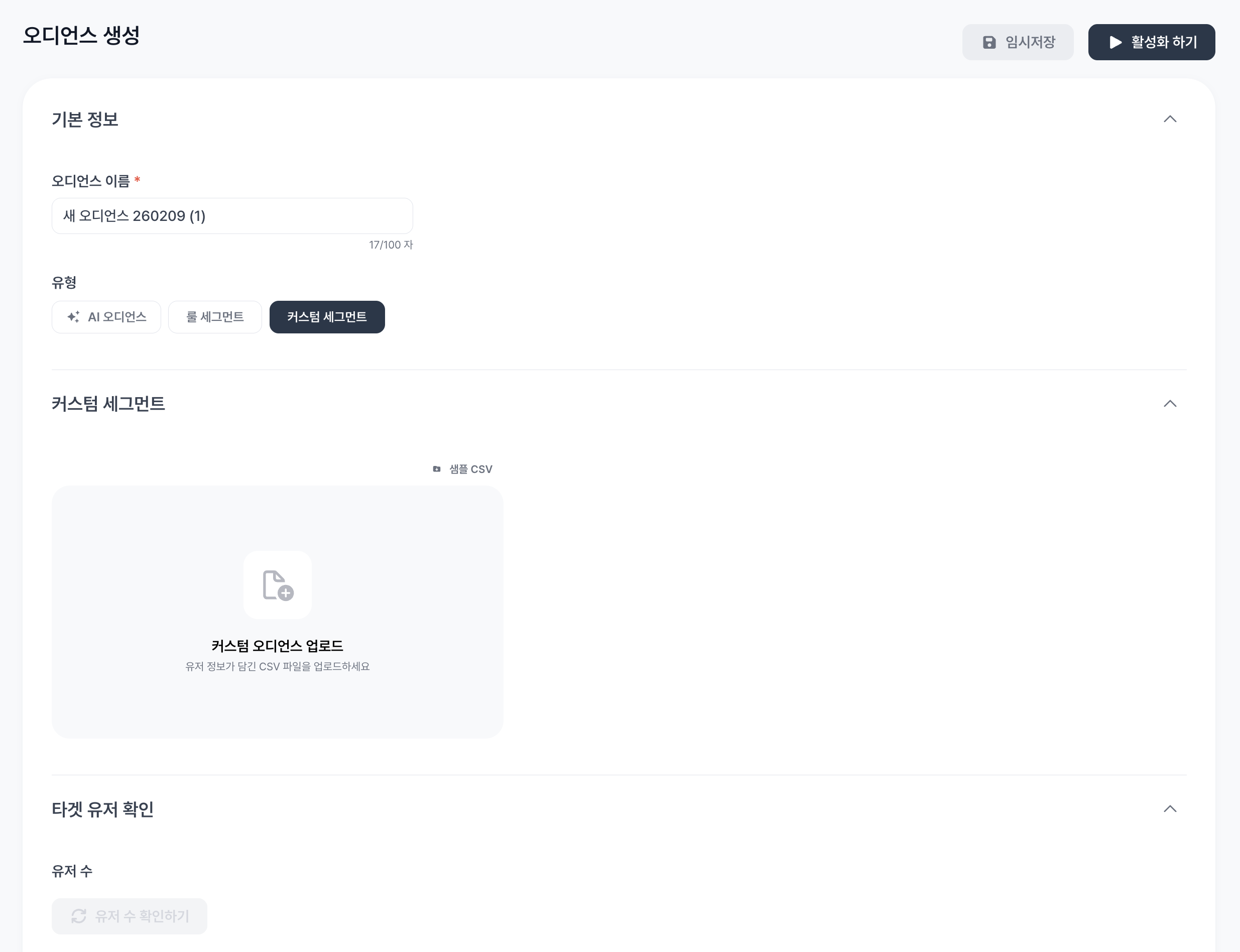 ## 커스텀 세그먼트 오디언스 생성하기
### 0️⃣ 템플릿 다운 받기
* "커스텀 오디언스 업로드" 창 우상단의 "**샘플 CSV**"를 다운 받습니다.
* user\_id 열과 phone\_number 열로 나누어진 예시 파일입니다.
샘플 CSV를 활용하지 않을 경우에도
user\_id 또는 phone\_number 두 개의 열로 구분된 파일을 업로드해 주셔야 합니다.
### 1️⃣ user\_id 또는 phone\_number가 포함된 CSV 업로드 하기
* 유저 식별자(user\_id, 전화번호)에 해당하는 값을 다음과 같은 형태(csv)로 저장해서 업로드하면 됩니다.
* 전화번호는 하이픈(-) 없이 11글자를 입력해야 합니다.
**Case 1. user\_id만 활용하는 경우**
* user\_id 열만 입력합니다
```
| user_id |
| --------- |
| user_id_1 |
| user_id_2 |
```
**Case 2. phone\_number만 활용하는 경우**
* phone\_number 열만 입력합니다
```
| phone_number |
| ------------ |
| 01012341234 |
| 01056785678 |
```
**Case 3. user\_id와 phone\_number를 모두 활용하는 경우**
* user\_id와 phone\_number 열을 구분하여 입력합니다
```
| user_id | phone_number |
| --------- | ------------ |
| user_id_1 | |
| user_id_2 | |
| | 01042310041 |
```
### 2️⃣ 유저 수 확인하기
파일 업로드 후, 타겟 유저 확인 파트의 "**유저 수 확인하기**"를 통해 커스텀 세그먼트로 업로드한 유저 중 **Blux에 연동된 유저 수**를 확인합니다.
## 커스텀 세그먼트 오디언스 생성하기
### 0️⃣ 템플릿 다운 받기
* "커스텀 오디언스 업로드" 창 우상단의 "**샘플 CSV**"를 다운 받습니다.
* user\_id 열과 phone\_number 열로 나누어진 예시 파일입니다.
샘플 CSV를 활용하지 않을 경우에도
user\_id 또는 phone\_number 두 개의 열로 구분된 파일을 업로드해 주셔야 합니다.
### 1️⃣ user\_id 또는 phone\_number가 포함된 CSV 업로드 하기
* 유저 식별자(user\_id, 전화번호)에 해당하는 값을 다음과 같은 형태(csv)로 저장해서 업로드하면 됩니다.
* 전화번호는 하이픈(-) 없이 11글자를 입력해야 합니다.
**Case 1. user\_id만 활용하는 경우**
* user\_id 열만 입력합니다
```
| user_id |
| --------- |
| user_id_1 |
| user_id_2 |
```
**Case 2. phone\_number만 활용하는 경우**
* phone\_number 열만 입력합니다
```
| phone_number |
| ------------ |
| 01012341234 |
| 01056785678 |
```
**Case 3. user\_id와 phone\_number를 모두 활용하는 경우**
* user\_id와 phone\_number 열을 구분하여 입력합니다
```
| user_id | phone_number |
| --------- | ------------ |
| user_id_1 | |
| user_id_2 | |
| | 01042310041 |
```
### 2️⃣ 유저 수 확인하기
파일 업로드 후, 타겟 유저 확인 파트의 "**유저 수 확인하기**"를 통해 커스텀 세그먼트로 업로드한 유저 중 **Blux에 연동된 유저 수**를 확인합니다.